
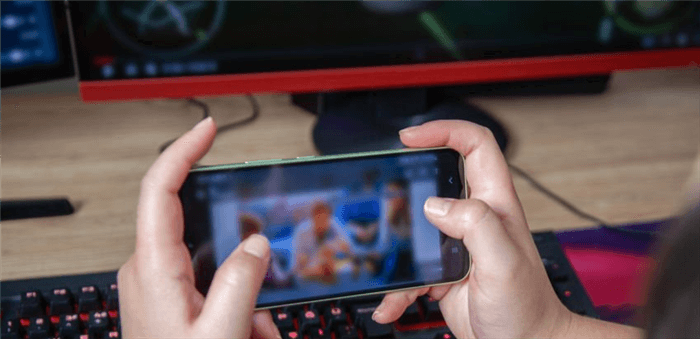

Why Stream Mobile Games Like PUBG and Mobile Legends?
Mobile gaming has exploded in popularity, with titles like PUBG Mobile and Mobile Legends attracting millions of players worldwide. This massive audience presents a golden opportunity for content creators. Streaming your gameplay allows you to connect with a global community, showcase your skills, and build a personal brand. Unlike traditional PC or console streaming, mobile streaming has a lower barrier to entry, making it an accessible starting point for aspiring creators. You can share epic moments, provide educational commentary, or simply entertain viewers with your personality, all from the convenience of your smartphone.
Essential Gear and Software for Mobile Streaming
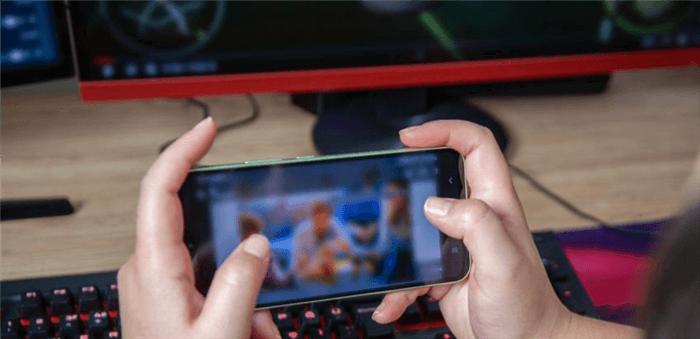
While you can start streaming with just your phone, investing in a few key pieces of equipment and software will significantly elevate your broadcast quality. A stable, high-quality stream is crucial for retaining viewers and appearing professional.
Hardware Recommendations:
- A Powerful Smartphone: A modern smartphone with a good processor and ample RAM is non-negotiable. Games like PUBG are demanding, and your phone needs to handle both running the game and encoding the video stream simultaneously.
- Stable Internet Connection: A high-speed Wi-Fi connection is essential. A choppy, lagging stream is the fastest way to lose viewers. If possible, use a 5GHz Wi-Fi network for better stability and speed.
- External Microphone: Your phone’s built-in mic can work, but an external microphone will provide much clearer audio for your commentary.
- Optional – Capture Card and PC: For the highest quality stream, you can mirror your phone’s screen to a PC using a capture card. This offloads the encoding work to the PC, resulting in smoother gameplay and a more professional broadcast with overlays and alerts.
Software for Streaming:
Several apps allow you to stream directly from your phone or via a PC setup.
- Direct-to-Platform Apps: Apps like the Twitch or YouTube Gaming app have built-in mobile streaming functionality. This is the simplest way to get started.
- Third-Party Mobile Apps: Apps like Streamlabs Mobile or Prism Live Studio offer more features, such as custom overlays, alerts, and widgets, directly on your mobile stream.
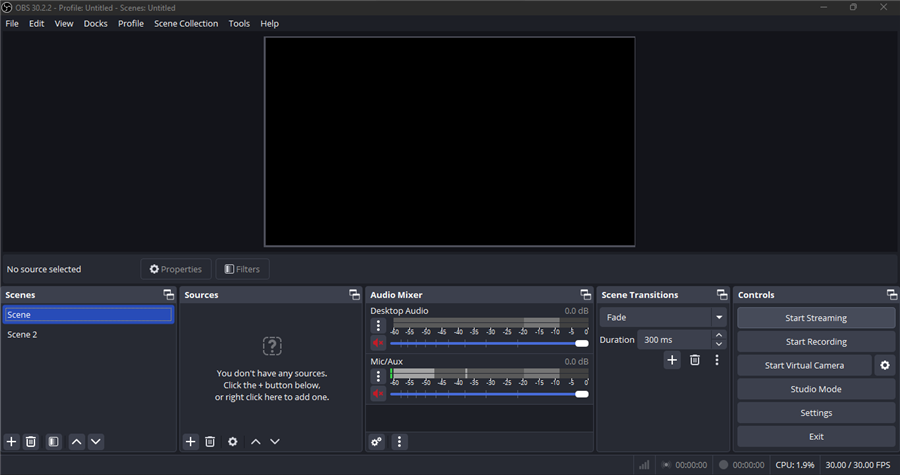
- PC-Based Software (OBS): If you’re mirroring to a PC, Open Broadcaster Software (OBS) is the industry standard. It’s a free, powerful tool that gives you complete control over your stream’s appearance, allowing for multiple scenes, sources, and professional-grade production quality.
Setting Up Your First Stream: A Step-by-Step Guide
Ready to go live? Here’s a basic walkthrough for setting up your stream using a PC for the best quality, which involves mirroring your phone and using OBS.
Step 1: Mirror Your Phone to Your PC
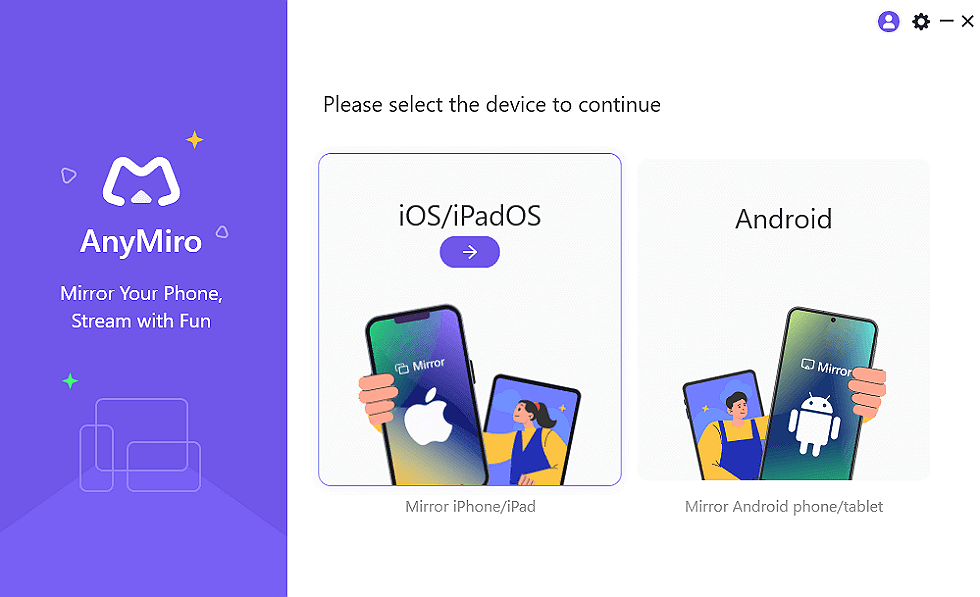
You can connect your phone to your PC using either a USB cable or Wi-Fi. Software like AnyMiro makes this process simple. For a lag-free experience, a wired USB connection is generally recommended.
- Download and install a screen mirroring application like AnyMiro on your computer.
- Connect your phone via USB or Wi-Fi, following the app’s instructions. You may need to enable USB debugging on Android or ‘Trust’ the computer on iOS.
- Once connected, your phone’s screen should appear in a window on your PC.
Step 2: Configure OBS
OBS will be your command center for the stream.
- Download and install OBS Studio from their official website.
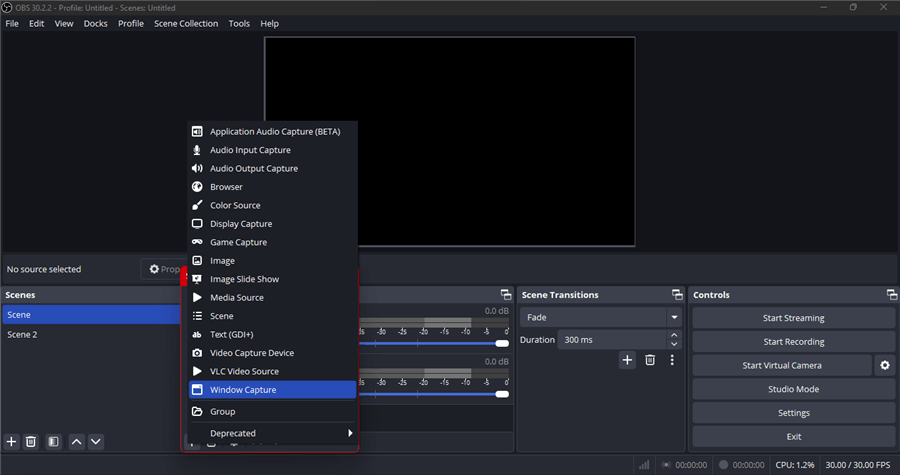
- In OBS, create a new scene. In the ‘Sources’ panel, add a ‘Window Capture’ source.
- In the properties for the Window Capture, select the window showing your mirrored phone screen.
- Add other sources like your webcam (‘Video Capture Device’) and microphone (‘Audio Input Capture’).
- Arrange your sources on the canvas to create your desired layout.
Step 3: Go Live!
The final step is to connect OBS to your chosen streaming platform.
- In your Twitch or YouTube dashboard, find your unique ‘Stream Key’.
- In OBS, go to ‘Settings’ > ‘Stream’. Select your platform and paste in your stream key.
- Once everything is configured, click ‘Start Streaming’ in OBS. You are now live!
Content Strategy and Audience Growth
Starting your stream is just the beginning. To grow as a content creator, you need a solid strategy.
- Be Consistent: Stream on a regular schedule so viewers know when to tune in.
- Engage with Your Audience: Read the chat, respond to comments, and make your viewers feel like part of a community.
- Find Your Niche: Are you a pro player aiming for high-rank gameplay, an entertainer with a great personality, or a teacher who creates tutorials? Focusing on a niche helps you stand out.
- Promote Your Stream: Use social media to announce when you’re going live. Share clips and highlights on platforms like TikTok, Instagram Reels, and YouTube Shorts to attract new followers.
- Collaborate: Partner with other streamers to cross-promote your channels and reach new audiences.
By combining the right gear, software, and a thoughtful content strategy, you can turn your passion for mobile gaming into a successful streaming career. Good luck, and have fun!
Editorial Review: This guide has been reviewed by the editorial team for clarity, practical value, mobile usability, payment safety, and safer decision-making.